

TL;DR: To set up a proxy, you need four details from your provider: host, port, protocol and login method. Then you enter them in your system settings, your browser, your phone’s Wi-Fi settings or your code. I walk you through Windows 11, macOS, Chrome, Firefox, iPhone, Android, Python, cURL and Playwright. I also show you how to test the connection and fix the usual errors.
Not every proxy is worth setting up. Researchers tested 107,034 free open proxies. They found that more than 92 percent were offline or unusable. Some of the ones that did work injected ads or malicious code.
So step one is a proxy you can trust. Step two is setting it up correctly.
That second step trips up a lot of people. Every device hides its proxy settings in a different menu. Some apps ignore system settings. And some protocols just don’t work on some platforms.
This guide fixes that. Each section gives you the exact menu path. I took them from the official help pages of Microsoft, Apple, Google and Mozilla.
I cover code too, since most paid proxies end up inside scripts and scrapers.
Haven’t picked a provider yet? Start with my best proxy providers guide. Not sure which kind of proxy you need? My guide to proxy types explains residential, datacenter, ISP and mobile options.
Quick Reference: Where to Find Proxy Settings on Each Platform
| Platform | Where to Find It | Protocols | Key Note |
|---|---|---|---|
| Windows 11 | Settings, Network & internet, Proxy | HTTP/HTTPS, PAC script | Applies to most apps and Chrome |
| macOS | System Settings, Network, Details, Proxies | HTTP, HTTPS, SOCKS | Set per network service |
| Chrome | Uses system settings | HTTP, HTTPS, SOCKS | No SOCKS5 login support |
| Firefox | Settings, Network Settings | HTTP, HTTPS, SOCKS v4/v5 | Own settings, separate from OS |
| iPhone/iPad | Settings, Wi-Fi, network, Configure Proxy | HTTP only | Per Wi-Fi network only |
| Android | Network & internet, Internet, network, Edit | HTTP | Per Wi-Fi network only |
| Python requests | proxies argument or env variables | HTTP, HTTPS, SOCKS5 | Install requests[socks] for SOCKS |
| cURL | -x and -U flags | HTTP, HTTPS, SOCKS4/5 | Use socks5h for remote DNS |
What Do You Need Before You Set Up a Proxy?
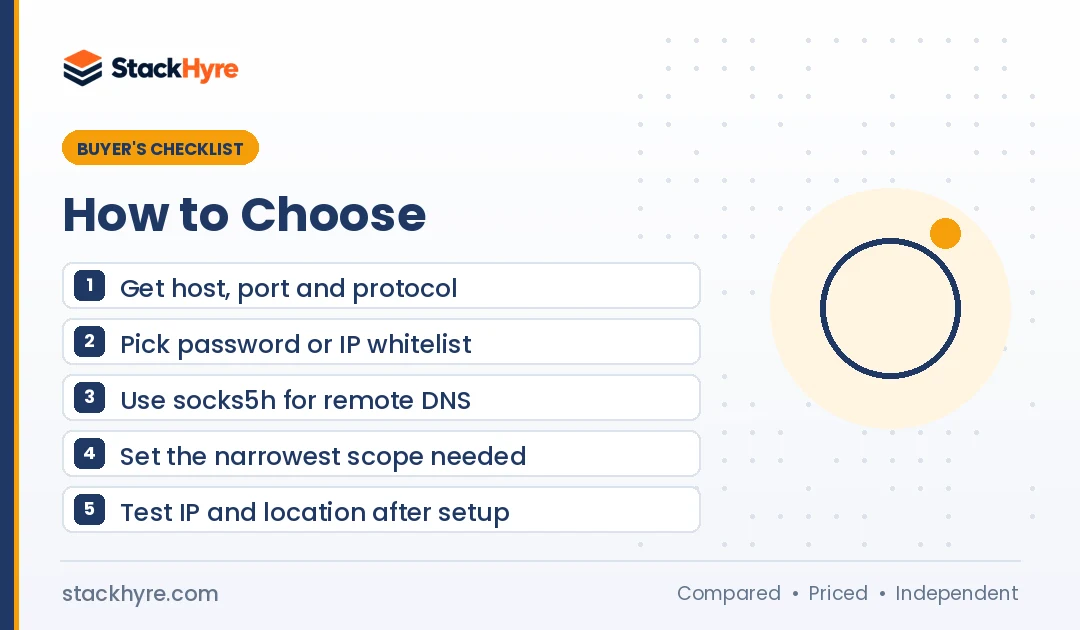
You need four things from your provider: the host, the port, the protocol (HTTP, HTTPS or SOCKS5) and the login method. The host is an IP address or hostname. The login is either a username and password or an IP whitelist. Copy all four from your provider’s dashboard before you open any settings menu.
Most paid providers use one of two login methods:
- Username and password. You type your credentials each time, or put them in your code. This works from any network.
- IP whitelisting. You add your own public IP address in the provider’s dashboard. Requests from that IP need no password. It’s simpler on phones and browsers, but it breaks when your home IP changes.
Rotating residential proxies often pack targeting options into the username. For example, Oxylabs’ proxy quick start shows an endpoint of pr.oxylabs.io:7777. Add “-cc-US” to the username and you target the United States. Add “-sessid-” plus an ID and you keep the same IP for a sticky session.
Other providers use other formats, so check your dashboard. Sticky sessions hold one IP for a while. Rotating sessions switch IPs on every request. My guide to rotating vs static proxies explains when to use each.
Write your details down in this order: protocol, host, port, username, password. You’ll reuse them in every section below.
How Do You Set Up a Proxy on Windows 11?
Open Settings, go to Network & internet, then Proxy. Under Manual proxy setup, select Set up next to “Use a proxy server”. Turn it on, enter the proxy IP address and port, then select Save. If the proxy needs a login, Windows asks for it the first time an app connects.
Here are the full steps, based on Microsoft’s guide to using a proxy server in Windows:
- Select Start, then Settings.
- Go to Network & internet, then Proxy.
- Next to “Use a proxy server”, select Set up.
- Turn on “Use a proxy server”.
- Enter the proxy IP address or hostname and the port.
- Add any sites that should skip the proxy in the exceptions box. Separate them with semicolons.
- Leave “Don’t use the proxy server for local (intranet) addresses” checked, unless your company says otherwise.
- Select Save.
If your company gives you a PAC script address, use “Use setup script” instead. Turn it on, paste the script address and save.
Windows system proxy settings handle HTTP and HTTPS traffic. For SOCKS5, set it up inside the app itself, like Firefox or your scraping tool.
VPN connections get their own proxy settings in Windows. Microsoft says you can edit them under Network & internet, VPN, then Advanced options for each VPN connection.
How Do You Set Up a Proxy on macOS?
On a Mac, open System Settings, then Network. Pick your active connection, such as Wi-Fi, and click Details. Choose Proxies and turn on the protocol you need, like Secure web proxy (HTTPS). Then enter the server and port. Add your username and password if the proxy needs a login, then click OK.
Apple’s Safari guide to setting up a proxy server gives you a shortcut too. In Safari, choose Settings, then Advanced, then click Change Settings next to Proxies. That opens the same Network settings screen.
Step by step:
- Choose Apple menu, then System Settings.
- Click Network in the sidebar.
- Select your active service, such as Wi-Fi or Ethernet, then click Details.
- Click Proxies.
- Turn on Web proxy (HTTP), Secure web proxy (HTTPS) or SOCKS proxy.
- Enter the server address and port.
- If needed, turn on password authentication and enter your credentials.
- Add any bypass domains in the “Bypass proxy settings” box.
- Click OK.
macOS saves these settings per network service. So if you switch from Wi-Fi to Ethernet, you have to set the proxy on that service as well. Safari and Chrome follow these settings. Firefox can follow them or use its own.
How Do You Set Up a Proxy in Chrome and Firefox?
Chrome has no proxy menu of its own. It uses your operating system’s proxy settings, so you set the proxy in Windows or macOS. Firefox has its own settings. Open Settings, find Network Settings and click Settings. Choose Manual proxy configuration and enter your host and port. Firefox also supports SOCKS v5 directly.
Google Chrome
In Chrome, go to Settings, then System, then “Open your computer’s proxy settings”. That button takes you to the Windows or macOS screens I covered above.
If you’re a developer, you can also launch Chrome with a proxy from the command line. The Chromium proxy documentation describes the –proxy-server flag, with an optional –proxy-bypass-list.
One big limit: the same Chromium document says Chrome supports no authentication methods for SOCKS5. If your SOCKS5 proxy needs a password, whitelist your IP or use an HTTP endpoint instead.
Mozilla Firefox
Firefox keeps its proxy settings apart from the system. That’s handy when you want a proxy in one browser while the rest of your computer stays direct.
The steps, based on Mozilla’s connection settings guide:
- Click the menu button, then Settings.
- In the General panel, scroll to Network Settings and click Settings.
- Select Manual proxy configuration.
- Enter the HTTP proxy host and port. Check “Also use this proxy for HTTPS” if one proxy handles both.
- For SOCKS, enter the SOCKS host and port and pick SOCKS v5.
- Add any exclusions in the “No proxy for” box.
- Click OK. Firefox asks for your login the first time you browse.
When you use SOCKS v5, also turn on “Proxy DNS when using SOCKS v5”. Mozilla’s enterprise proxy policy reference lists this as the UseProxyForDNS setting. It sends your DNS lookups through the proxy too.
Need several browser profiles with different proxies? Antidetect browsers do that per profile. See my list of the best antidetect browsers.
How Do You Set Up a Proxy on iPhone and Android?
On both iPhone and Android, you set proxies per Wi-Fi network. On iPhone, go to Settings, Wi-Fi, tap your network, then Configure Proxy and choose Manual. On Android, go to Settings, Network & internet, Internet and tap your network. Tap Edit, then Advanced options, and set Proxy to Manual. Neither one applies the proxy to cellular data.
iPhone and iPad
- Open Settings and tap Wi-Fi.
- Tap the info button next to your connected network.
- Scroll to HTTP Proxy and tap Configure Proxy.
- Choose Manual.
- Enter the server and port.
- If your proxy uses a login, turn on Authentication and enter your username and password.
- Tap Save.
iOS only supports HTTP proxies in these settings. Proxyway’s iPhone proxy guide notes that iOS won’t let you set a SOCKS5 proxy here. It also confirms the proxy only applies to the Wi-Fi network you set it on.
Android
Menu names change from one phone maker to the next. These steps follow Google’s Pixel Wi-Fi help page:
- Open Settings, then Network & internet, then Internet.
- Tap the Wi-Fi network you want to change.
- Tap Edit, then Advanced options.
- Under Proxy, choose Manual.
- Enter the proxy hostname and port.
- Tap Save.
Android’s built-in Wi-Fi proxy has no username or password fields. If your proxy needs a login, whitelist your phone’s public IP in your provider’s dashboard. Some browsers and apps may also ignore the setting.
Which Setup Method Fits Your Task?
My rule: pick the narrowest setup that covers your task. Use one browser, like Firefox, for quick location checks. Use system settings when every app has to go through the proxy. Use code for scraping and automation, since a script gives you full control over rotation, sessions and retries. And if what you want is encryption for the whole device, use a VPN instead.
- Checking how a site looks in another country: Firefox manual proxy, or a browser extension.
- Routing a whole computer through a company proxy: Windows or macOS system settings.
- Managing several social or ecommerce accounts: an antidetect browser with one proxy per profile, within each platform’s rules.
- Web scraping or rank tracking: proxy settings in your code or scraping tool.
- Privacy on public Wi-Fi: a VPN. My proxy vs VPN comparison explains why.
How Do You Use a Proxy in Python and cURL?
In Python’s requests library, pass a proxies dictionary. Map “http” and “https” to a URL like http://user:pass@host:port. In cURL, use -x for the proxy address and -U for the username and password. For SOCKS5, use socks5h:// so the DNS lookups happen on the proxy side.
Python requests
The Requests documentation on proxies shows the basic pattern. Swap the placeholders for your own details:
proxies = {“http”: “http://USER:PASS@HOST:PORT”, “https”: “http://USER:PASS@HOST:PORT”}
requests.get(“https://example.com”, proxies=proxies)
For SOCKS5, first run: pip install “requests[socks]”. Then use socks5h://USER:PASS@HOST:PORT as the proxy URL. The docs explain that socks5 resolves DNS on your machine, while socks5h resolves it on the proxy.
The same docs carry two warnings you should know. First, environment variables like HTTPS_PROXY can override session-level proxy settings. To be safe, pass proxies on each request. Second, don’t store passwords in environment variables or committed files.
cURL
The Everything curl guide to proxy authentication uses -U for credentials:
curl -U USER:PASS -x HOST:PORT https://example.com
For SOCKS, put the version in the proxy URL. The Everything curl SOCKS page shows both forms:
curl -x socks5h://HOST:PORT https://example.com
Oxylabs’ quick start shows a full pattern for its residential network. The username combines country targeting and a sticky session:
curl -x pr.oxylabs.io:7777 -U “customer-USERNAME-cc-US-sessid-abc123:PASSWORD” https://ip.oxylabs.io/location
Playwright and headless browsers
Browser automation tools take a proxy object. Playwright’s network docs show a proxy setting with server, username and password fields. You can set it for the whole browser or per browser context. That way each context can use a different IP.
How Do You Check That Your Proxy Works?
Open an IP lookup page, or call one from your code, once with the proxy and once without. If the IP address and location switch to the proxy’s, it works. For a rotating proxy, run the check a few times and make sure the IP changes. For a sticky session, make sure it stays the same.
A quick checklist:
- IP changed? The lookup should show the proxy’s IP, not yours.
- Right country? If you targeted a location, the lookup should match it.
- Rotation working? Repeat the request and compare the results.
- DNS going through the proxy? With SOCKS5, use socks5h in code or “Proxy DNS” in Firefox.
- Other apps? Apps without proxy settings still use your real IP.
Plenty of providers have their own checker. Oxylabs, for example, uses ip.oxylabs.io/location in its sample command.
Why Is My Proxy Not Working?
Most proxy failures come down to four causes: a wrong host or port, a login problem, a protocol mismatch or a blocked IP. Check your dashboard details first. Then confirm your login method, whether that’s a password or a whitelisted IP. Then make sure the app supports the protocol you picked.
Common errors and how to fix them:
- 407 Proxy Authentication Required. MDN defines this status as a request that lacks valid proxy credentials. Recheck the username and password, or whitelist your current IP.
- Connection refused or timeout. The host or port is wrong, or the plan has expired. Copy the details again from your dashboard.
- Whitelisting stopped working. Your home IP probably changed. Update it in the dashboard.
- SOCKS5 fails in Chrome. Chrome doesn’t support SOCKS5 logins. Use IP whitelisting or an HTTP endpoint.
- SOCKS5 option missing on iPhone. iOS settings only support HTTP proxies.
- Proxy ignored in Python. An environment variable may be overriding your session. Pass proxies on each request.
- Blocks or CAPTCHAs. The site is flagging the IP type. Try a residential or mobile proxy, slow down your request rate, or rotate IPs.
- VPN conflict. Some VPN apps block proxy traffic. Turn one tool off and test again.
How I Built This Guide
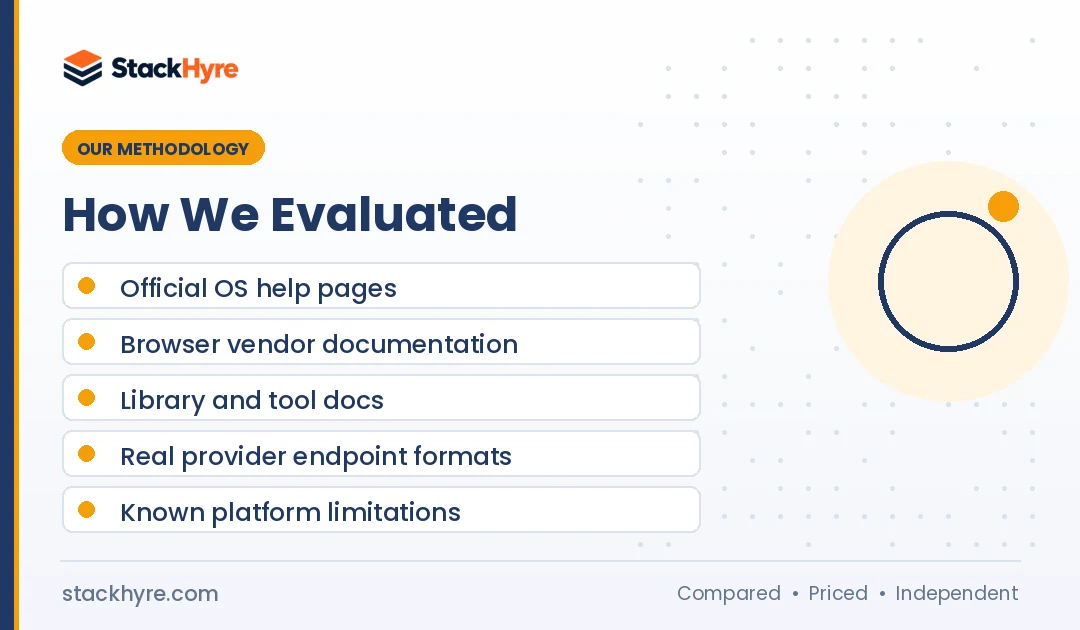
I wrote these steps from official documentation, not guesswork. I didn’t run lab tests on each device for this guide.
- Operating systems: Microsoft, Apple and Google help pages for Windows 11, macOS and Android.
- Browsers: Mozilla support and enterprise docs, plus the Chromium proxy documentation.
- Code: the official Requests, Everything curl and Playwright documentation.
- Provider formats: Oxylabs’ public quick start guide as a real-world example.
- Independent guides: Proxyway’s iPhone guide for iOS limits.
Menus change with software updates. If a label looks different on your device, search the settings app for “proxy”.
The Bottom Line
Setting up a proxy is simple once you have the right details. Get the host, port, protocol and login method from your provider. Then enter them in the narrowest place that covers your task.
Use Firefox for quick browser checks. Use Windows or macOS settings for system-wide routing. Use code for scraping and automation, where you control rotation and sessions.
Watch out for platform limits. Chrome has no SOCKS5 login, and iPhone only supports HTTP proxies in Wi-Fi settings.
Still choosing a vendor? Test before you commit. My list of proxy free trials shows who lets you try first. Then compare the full field in my best proxy providers ranking.
Frequently Asked Questions
What information do I need to set up a proxy?
You need the proxy host, which is an IP address or hostname, and the port number. You also need the protocol, such as HTTP, HTTPS or SOCKS5. Last, you need the login method: a username and password, or an IP whitelist. Your provider shows all of these in its dashboard once you buy a plan or start a trial.
How do I turn off a proxy on Windows 11?
Open Settings, go to Network & internet, then Proxy. Under Manual proxy setup, select Set up, turn off “Use a proxy server” and select Save. If you used a setup script, turn off “Use setup script” too. Your apps and Chrome will then connect directly, without the proxy, on the next request.
Can I use a SOCKS5 proxy on iPhone?
Not through the built-in settings. The iPhone Wi-Fi settings only support HTTP proxies under Configure Proxy. If you need SOCKS5 on iOS, you’ll need a third-party app that supports it. Or just use your provider’s HTTP endpoint. Most paid providers give you HTTP and SOCKS5 access to the same pool.
Why does my proxy ask for a password again and again?
Repeated password prompts usually mean the credentials are wrong or the app can’t store them. Copy the username and password again from your dashboard, since rotating proxies often use long usernames with targeting codes. If the prompts keep coming, switch to IP whitelisting. Add your current public IP in the dashboard, and the proxy stops asking you to log in.
Does setting a proxy in Chrome affect other apps?
Yes, on Windows and macOS. Chrome uses your operating system’s proxy settings. So changing them also affects other apps that follow system settings, like Edge and Safari. If you want a proxy in just one browser, use Firefox’s own settings or a proxy extension. You can also launch Chrome with the –proxy-server flag.
Related Articles


Daniel Brooks writes about proxies, web scraping and email infrastructure at StackHyre. He compares providers on published pricing, documentation and independent benchmarks so you can pick the right setup without overpaying.